Connect Your Bluetooth Glucometer to Glucobyte
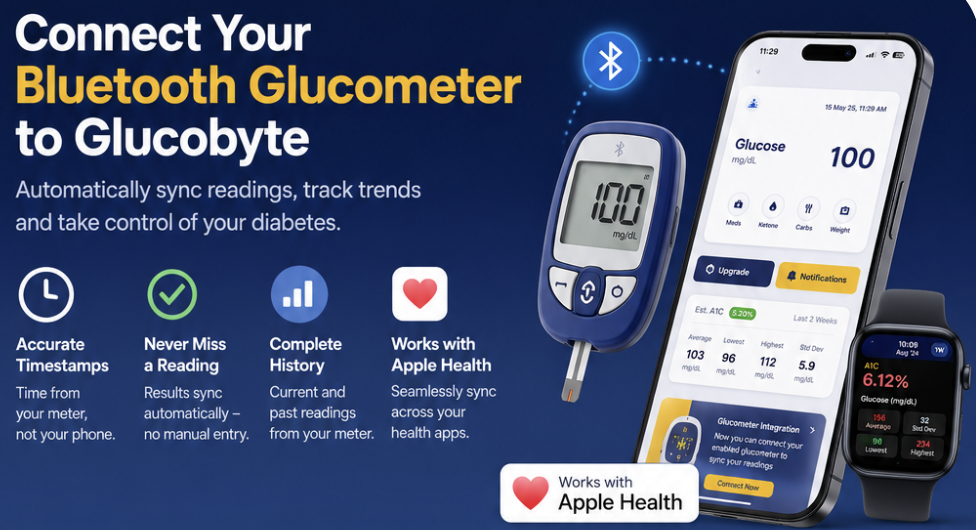
Connect Your Bluetooth Glucometer to Glucobyte (Contour, Accu-Chek & More)
If you test with a Bluetooth-enabled blood glucose meter, you shouldn't have to type the number into an app afterwards. Glucobyte connects directly to your meter over Bluetooth, reads the result the moment you finish a test, and files it in your history — with the right date, the right time, and the right units.
This guide covers which meters work, how to set the connection up, what actually happens to your readings, and what to do when it doesn't work the first time.
Note for the editor: Bluetooth glucometer sync is available in Glucobyte for iOS version [FILL IN VERSION] and later. Confirm Android availability and screenshot/video embeds before publishing.
Watch the 2-minute walkthrough: How to Connect Glucobyte with Contour Next One & Accu-Chek Bluetooth Glucose Meters
Why bother connecting the meter at all?
Manual entry works. It's also the first thing people stop doing. A number typed in from memory three hours later is a number with a wrong timestamp attached, and timestamps are most of what makes glucose data useful — they're how you see that your Tuesday breakfast is the problem, or that your overnight numbers drift.
A direct connection fixes that quietly:
- The timestamp comes from the meter, not from when you happened to open the app
- Nothing gets skipped because you were busy, or driving, or asleep
- Nothing gets mistyped — no transposed digits, no 132 recorded as 123
- Your meter's stored history comes across too, so past tests you never logged still land in Glucobyte
And once the readings are in, everything else in the app works on them: charts, time-in-range, estimated A1C, tags, PDF reports for your doctor, the watch app and widgets.
Which meters work?
Glucobyte talks to meters using the standard Bluetooth Glucose Profile — a published specification that meter manufacturers implement so that any app can read from any compliant meter. This is the same mechanism that lets your phone pair with any Bluetooth headphones rather than only one brand's.
In practice, Glucobyte currently recognises two meter families:

Two honest caveats:
Model names change by country. Ascensia sells the same meter as Contour Next One in the US and Contour Plus One elsewhere; Roche's Accu-Chek line varies similarly. The names above are guidance, not a certified compatibility list.
Bluetooth-enabled isn't the same as connectable. Some meters use Bluetooth only to talk to their own manufacturer's app, using a private protocol no third party can read. Others — including the Contour and Accu-Chek families above — implement the open standard.
The fastest way to find out is simply to try it. The setup below takes about a minute, and if your meter isn't compatible, nothing happens and nothing breaks.
Don't have a Bluetooth meter? Glucobyte works perfectly well without one — manual entry, Apple Health, Nightscout and CSV import all remain available. This is a convenience, not a requirement.
Step 1: Get your meter ready
Before you touch the app:
- Fit the batteries if the meter is new, and set the meter's date and time
- Put the meter into pairing mode — how you do this varies, so check the leaflet that came with it. On many meters it's holding a button until the Bluetooth symbol flashes
- Make sure it isn't already paired to another phone or app. A meter connected to the manufacturer's app on another device may refuse a second connection
That second point deserves emphasis. Set the meter's clock correctly. Glucobyte takes the date and time of each reading from the meter itself, not from your phone. A meter whose clock is a year behind, or stuck on the wrong time zone after travel, will file perfectly accurate readings under perfectly wrong dates.
Step 2: Turn on the connection in Glucobyte
- Open Glucobyte and tap More
- Tap Glucometer
- Turn on Connect with Bluetooth
- Approve the Bluetooth permission prompt if iOS asks
That's the whole setup. There's no device list to pick from and no account to create — with the switch on, Glucobyte watches for a compatible meter whenever the app is open.
Some meters will show a passcode on their display and ask you to type it into your phone to complete pairing. That's your meter's security, not Glucobyte's, and you'll normally only do it once.
On the same screen you'll find a Show the card toggle. This controls the glucometer prompt card on your home screen; it disappears on its own once you've connected successfully, and you can bring it back here if you want it.
Step 3: Take a test
With the app open and your phone next to the meter, run a normal blood glucose test.
When Glucobyte finds the meter you'll see "Glucometer Connected" on screen, and your result appears in your history within a few seconds — along with anything else stored in the meter's memory that Glucobyte hasn't already got.
Two conditions matter, and they're the cause of most first-time failures:
Keep the phone close. Glucobyte deliberately requires a strong signal before connecting — roughly arm's length or nearer. This is on purpose: it stops your phone grabbing a meter across the room in a clinic waiting area or a household with more than one meter. If your phone sees the meter but the signal is weak, you'll get a "Place your phone near Glucometer" prompt. Move closer.
Keep the app open. The connection only runs while Glucobyte is in the foreground. iOS gives apps very limited freedom to use Bluetooth in the background, and Glucobyte doesn't ask for that permission — so the app stays on screen during the test, and your screen stays awake while a meter is connected. Test, wait for the result to land, then carry on.
What happens to a reading once it arrives
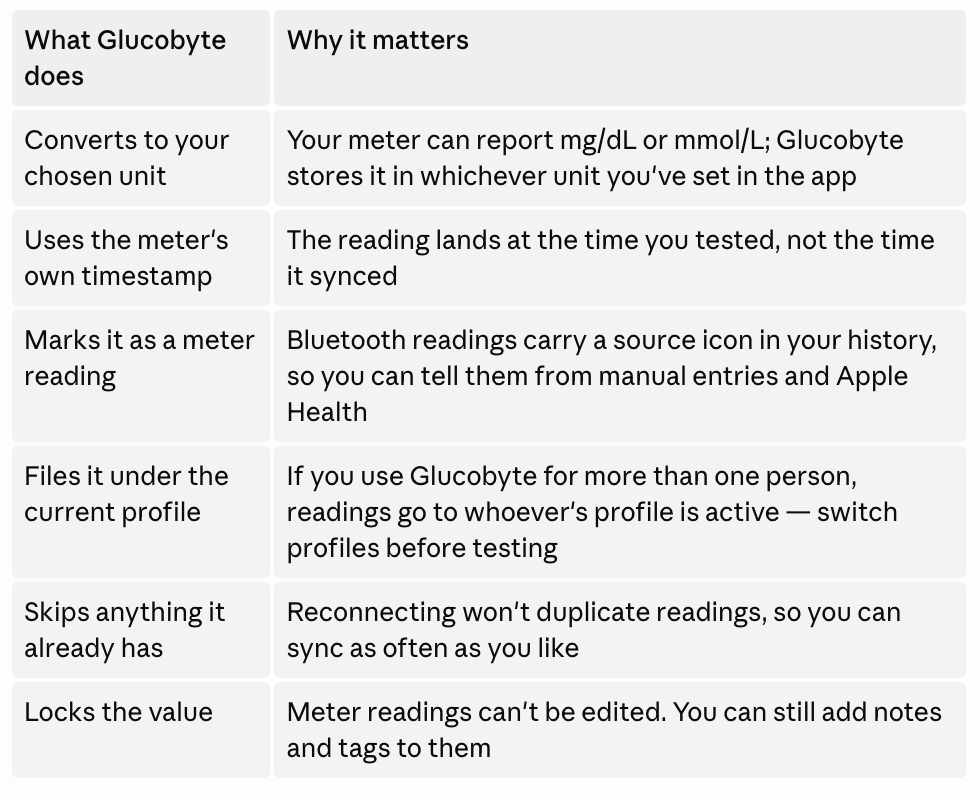
That last one occasionally surprises people, so it's worth explaining. A reading that came from your meter is a measurement, and the point of a measurement is that it's what the device actually said. If it were editable, your history would no longer be a record of anything in particular. Notes, tags and context stay fully yours to change.
Meter readings are included in CSV exports (in a BluetoothMeter column) and in Cloud backup, exactly like any other record.
Troubleshooting
Nothing happens when I test. Work through these in order:
- Is Connect with Bluetooth actually on, under More → Glucometer?
- Is the app open and on screen? Background sync isn't supported
- Is the phone within about arm's length of the meter?
- Is your phone's Bluetooth on — check Control Centre, not just the app
- Is the meter still paired to the manufacturer's app on another phone? Disconnect it there first
- Try turning the Glucobyte switch off and on again to restart the scan
"Place your phone near Glucometer" keeps appearing. Glucobyte can see your meter but the signal is too weak to trust. Move the phone closer, and take it out of a thick case or your back pocket if that's where it is.
iOS never asked for Bluetooth permission, or I said no. Open the iPhone Settings app → Glucobyte → turn Bluetooth on. Glucobyte can't re-prompt once you've declined.
Readings arrive with the wrong date or time. Your meter's clock is wrong. Fix it in the meter's own settings — Glucobyte reads whatever the meter reports.
The number looks wrong / is in the wrong unit. Check your unit setting in Glucobyte (mg/dL or mmol/L). Glucobyte converts from whatever your meter uses, so the two don't have to match.
My meter shows an error instead of a result. These come from the meter itself, and Glucobyte passes them through:

I connected, but old readings didn't come across. Glucobyte requests everything in the meter's memory on connection. If some are missing, they're most likely not in the meter's memory — many meters store a limited number of results and overwrite the oldest.
Frequently asked questions
Do I need an account, or a subscription, to connect a meter? No. Turn the switch on and test.
Does my data go to Glucobyte's servers? The reading travels from your meter to your phone over Bluetooth and is stored on your device. It's only uploaded if you've turned on Glucobyte Cloud backup, which is your choice and controlled by that setting.
Can I still use my meter's own app? Yes, but not usually at the same moment. Most meters connect to one phone at a time, so if the manufacturer's app is holding the connection, Glucobyte won't get it — and vice versa.
Will this drain my battery? Glucobyte only scans while it's open on screen, so there's no background battery cost.
Can I use one phone for two people's meters? Yes. Create a profile for each person and switch to the right profile before testing — readings are filed under whichever profile is active.
Can I connect a CGM this way? No — this is for finger-stick meters. For continuous glucose monitors, Glucobyte reads CGM data through Nightscout or Apple Health instead.
My meter isn't Contour or Accu-Chek. Is it worth trying? Yes, if it advertises Bluetooth. It costs a minute to find out, and a meter that doesn't work simply won't connect.
Can I fix a reading that came in wrong? Not the value — meter readings are locked. If a reading is genuinely wrong (a bad strip, say), your meter's own manual will explain how to handle it. You can always add a note to the record explaining what happened.
In short
Set the meter's clock, turn on More → Glucometer → Connect with Bluetooth, keep the phone near the meter with the app open, and test. From then on your readings log themselves — correctly timestamped, in your units, ready for every chart and report in the app.
Glucobyte is not affiliated with, sponsored by, or endorsed by Ascensia Diabetes Care, Roche Diabetes Care, or any other meter manufacturer. Contour and Accu-Chek are trademarks of their respective owners. Meter compatibility depends on your specific model and region. Glucobyte is intended for informational and record-keeping purposes and is not a substitute for professional medical advice — always follow your meter manufacturer's instructions and consult your healthcare provider about your diabetes management.